Examples
A narrated UI bug handoff
Follow a small fictional workspace bug from reproduction to a reviewable report with source evidence.
By Eavesy · 4 min read · Updated
On this page
This is a worked teaching example with a deliberately broken demo. It is not a customer incident, a recording of the Eavesy app, or a claim that an AI fixed a real bug. Use the fixture to practice a focused capture and handoff.
Reproduce the symptom
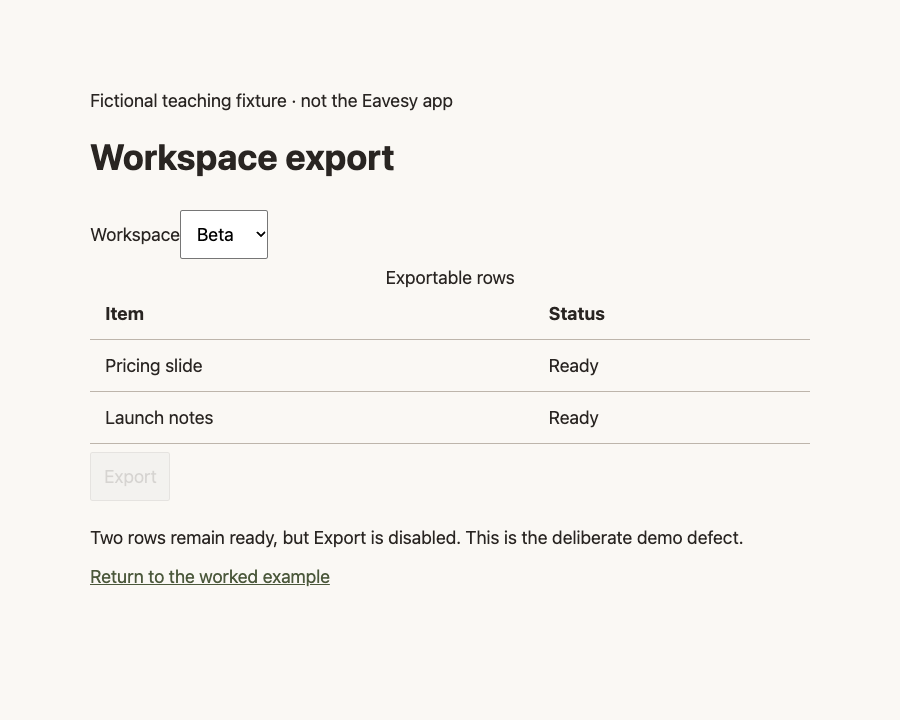
Open the workspace demo. In Alpha, two rows are visible and Export is enabled. Switch to Beta. The same two rows remain, but Export becomes disabled. The demo intentionally causes that state on every workspace change.
The screenshot below shows the actual demo after switching to Beta. It is a browser screenshot of the teaching fixture, not a screen capture produced by Eavesy.
Narrate a useful capture
In Eavesy, choose Video and say what you are showing: “Alpha has two ready rows and Export is enabled. I switch to Beta. There are still two rows, but Export is disabled. I expected export to remain available.” Stop after the reproduction.
This narration distinguishes an observation from an expectation. It does not claim to know why the defect occurs. Your own recorded capture, transcript, and selected screenshot become the evidence when you follow these steps.
Prepare the report
The downloadable report is hand-authored from the fixture. It names the initial state, trigger, actual result, and expected result. Add a screenshot from your own test and the actual recording path. Mac version 0.5.4 does not automatically extract visual frames into this report.
For a local agent, give access to the relevant folder. In a browser chat, paste the text and attach the image. Do not assume a copied local video path has been uploaded.
Ask for investigation
A useful request is: “Inspect the screenshot and reproduction, then find the condition controlling the disabled state. Tell me what you verified before changing it.” The demo's source is intentionally simple, so an investigator can connect the visible symptom to its workspace-change handler.
Check the result yourself
After a proposed change, repeat Alpha → Beta and verify that Export remains available with the rows present. Also test a genuinely empty state before deciding what the correct condition should be. Reading a persuasive explanation is not the same as verifying the UI.
The completed report, before investigation
| Field | Example |
|---|---|
| Goal | Export the visible ready rows after changing workspace |
| Starting state | Alpha selected, two ready rows, Export enabled |
| Trigger | Switch from Alpha to Beta |
| Actual result | Two rows remain visible; Export is disabled |
| Expected result | Export remains available while exportable rows exist |
| Evidence | The linked demo and screenshot above |
| Unknown | Why the disabled state changes; whether a real product has this defect |
The report describes a symptom rather than claiming a root cause. The fixture is available for source inspection, but a screenshot alone cannot establish which event handler or condition is responsible.
What a good investigation should return
Ask for the condition that controls the disabled state and the test that connects it to the reproduction. A reviewable result should explain the relevant code, the proposed change, and what happened when the original steps were repeated. If the agent cannot inspect the screenshot or run the demo, it should say which part remains unverified.
Try the editable bug report with the fictional example, then replace its fields with a capture from your own app. Use the same structure without carrying over the demo’s symptoms as if they were your own.